Buscando un concepto EDU.IT

“...el contexto sociotecnológico generen un nuevo modelo de escuela que responda a las necesidades formativas de los ciudadanos...” Adell Castañeda

Buscando un concepto EDU.IT (parte 2)

¿Cuál es la situación actual y cuál la deseada? ¿Cómo haremos realidad un proceso de innovación?

Learn to use the Core Google for Edu apps

Google offers a free-of-cost learning center for teachers that want to learn how to use GAFE. Learn at your own pace.

Documentar los proyectos como estrategia de aprendizaje

La documentación de procesos educativos está cobrando cada vez más importancia. Pero, ¿cómo comenzar a documentar? ¿Cuáles son las primeras consideraciones?

Personal information protection

Many websites gather personal information from their visitors. Some tips for beginners.

Tuesday, August 11, 2015

Shared Folders Linux


Select the virtual machine, click on Settings, the above window will open. Click on the plus icon to select the folder you want to share with the virtual machine. Here I share the c:\Users\...\Desktop\HostDesk (the folder names are case sensitive) on the Windows 7 to share with the virtual Ubuntu. The shared folder name is Desktop, which will be used by Ubuntu to mount it.


Once you created the share, is time to start your virtual computer in order to mount it. Create a second folder on Linux's Desktop. Now, you should have created one folder on Windows 7 desktop, and another one, on Linu's Desktop. These are the folder you'll mount together.


Open a terminal and, inside the terminal window, use the search box if necessary.   


use the following command line, replacing "HostDesk" and "LinxDesk" with the share names you defined:


Monday, August 10, 2015

Variables on Scratch


Variables are used whenever a value must be stored — i.e., if a project required the user to input a name and then remember that name, the name would be stored in a variable. With this, the name can be retrieved at any time; all the project has to do is check the value (which is the name).

The look of the variable can be changed in to three forms: The normal readout, the large readout, and the slider. The form of the variable can be changed by double-clicking or right-clicking it and selecting the option that is wanted, or clicking it using the grow/shrink sprite tool.

The following example illustrates one use of  one variable. The variable name is "Flying".


The following scripts control the value of the variable "Flying", the vertical movement of the helicopter and the land/crash speed. Two different forces are "simulated" in this really simple project: the propellers thrust (adding a positive value to "Flying") and the gravity force (constantly changing "Flying" by a negative value).


The actual movement of the helicopter is controlled by the "Change y by" block, where the standard value is replaced by the value of the variable.


Friday, July 3, 2015

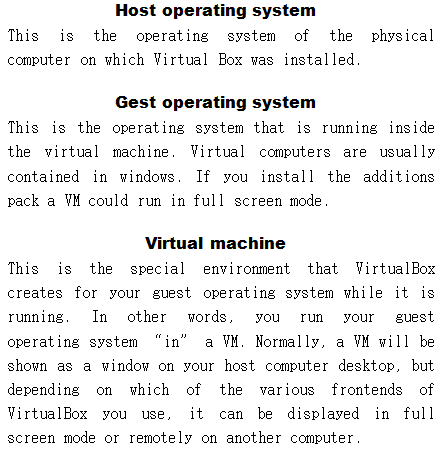
Guest Additions


The Guest Additions are designed to be installed inside a virtual machine after the guest operating system has been installed. They consist of device drivers and system applications that optimize the guest operating system for better performance and usability. Some of the extra features are: automatic resizing, seamless mode, the bidirectional clipboard, drag and drop, and more.


Sunday, June 7, 2015

Freeze ! I´ll save your state.


When you click on the "Close" button of your virtual machine window (at the top right of the window, just like you would close any other window on your system), VirtualBox asks you whether you want to "save" or "power off" the VM. (As a shortcut, you can also press the Host key together with "Q".)

The difference between these three options is crucial. They mean:
  • Save the machine state: With this option, VirtualBox "freezes" the virtual machine by completely saving its state to your local disk. When you start the VM again later, you will find that the VM continues exactly where it was left off. All your programs will still be open, and your computer resumes operation. Saving the state of a virtual machine is thus in some ways similar to suspending a laptop computer (e.g. by closing its lid).
  • Send the shutdown signal. This will send an ACPI shutdown signal to the virtual machine, which has the same effect as if you had pressed the power button on a real computer. So long as the VM is running a fairly modern operating system, this should trigger a proper shutdown mechanism from within the VM.
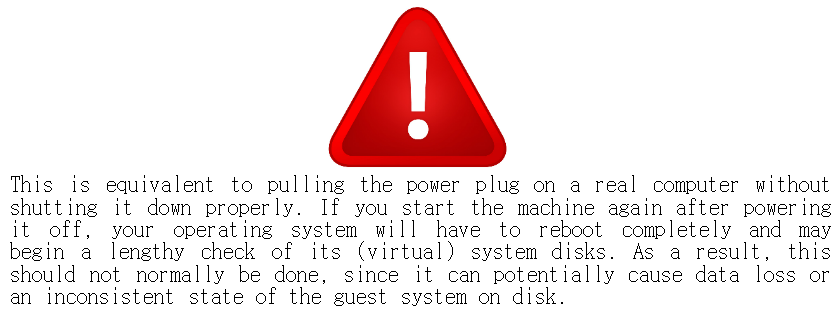
  • Power off the machine: With this option, VirtualBox also stops running the virtual machine, but without saving its state.


Friday, June 5, 2015

Blogging safety guidelines


This post article is intended to students about to open their blogs to the web and student´s parents. Blogging is a thrilling activity, many enthusiast and professional bloggers describe the experience as "life changing". For that experience to be safe, there are a number of considerations you should know about, which I´ll share with you in this post. The following content is a compilation from a variety of sources, such as experts web sites, government regulations and some schools disclaimers.

Eight safety tips for blogging (English). Download.


(Post under construction)

Thursday, June 4, 2015

Create your first VM


See the following two screencasts to learn how to create a simple VM.


Introduction to VMs


The techniques and features that VirtualBox provides are useful for several scenarios:
Running multiple operating systems simultaneously. VirtualBox allows you to run more than one operating system at a time. This way, you can run software written for one operating system on another (for example, Windows software on Linux or a Mac) without having to reboot to use it.

Easier software installations. Software vendors can use virtual machines to ship entire software configurations. For example, installing a complete mail server solution on a real machine can be a tedious task. With VirtualBox, such a complex setup (then often called an "appliance") can be packed into a virtual machine.


Testing and disaster recovery. Once installed, a virtual machine and its virtual hard disks can be considered a "container" that can be arbitrarily frozen, woken up, copied, backed up, and transported between hosts.

Snapshots and saved machine states. On top of that, with the use of another VirtualBox feature called "snapshots", one can save a particular state of a virtual machine and revert back to that state, if necessary. This way, one can freely experiment with a computing environment. If something goes wrong (e.g. after installing misbehaving software or infecting the guest with a virus), one can easily switch back to a previous snapshot and avoid the need of frequent backups and restores.

Infrastructure consolidation. Virtualization can significantly reduce hardware and electricity costs. Most of the time, computers today only use a fraction of their potential power and run with low average system loads. A lot of hardware resources as well as electricity is thereby wasted. So, instead of running many such physical computers that are only partially used, one can pack many virtual machines onto a few powerful hosts and balance the loads between them.

Monday, June 1, 2015

Scratch project nro. 1

Lets create a maze ! Numerous mazes of different kinds have been drawn, painted, published in books and periodicals, used in advertising, in software, and sold as art.


A maze is a tour puzzle in the form of a complex branching passage through which the solver must find a route. The pathways and walls in a maze are fixed, and puzzles in which the walls and paths can change during the game are also categorized as tour puzzles. The Cretan labyrinth is the oldest known maze.

Creating a maze game on Scratch is easier than you might think. You only need the following instruction set for a basic gaming experience:


  • One character to go through the maze. I suggest you replace the cat with another funny character. 
  • To control your character movements, I suggest two options: add four arrows pointing in up, down, right and left directions; or control your character using the arrow keys on the keyboard. For more advanced users, try to develop both options.
  • Insert a maze image in your stage. Depending on whether option to control your character you selected, a blank space on the stage will be needed. 
  • If your character touches any wall, you loose. If your character reaches the exit, you win. 


Some blocks you´ll need


Intro to Scratch Part 1


Scratch projects are made up of objects called sprites. You can change how a sprite looks by giving it a different costume. You can make a sprite look like a person or a train or a butterfly or anything else. You can use any image as a costume: you can draw an image in the paint editor, import an image from your hard disk, or drag in an image from a website. 
You can give instructions to a sprite, telling it to move or play music or react to other sprites. To tell a sprite what to do, you snap together graphic blocks into stacks, called scripts. When you double-click on a script, Scratch runs the blocks from the top of the script to the bottom.


Lets create a few initial projects, see the following videos to learn the basics:

Move your character


 Add sprites to your project
 

See more videos at: Tech Ed channel

Friday, May 29, 2015

Save your Scrached projects


The following two procedures should be done in all learning and practicing sessions. The "Save now" procedure is to be executed every two to three minutes, in order to prevent loosing too much progress in case of a Internet connection problem or similar. The "Download" procedure is to be executed before the end of each all learning and practicing sessions.

Save now...

Saving your scratch project in the cloud is easy as to click twice ! Just click on the file menu and then on "Save Now". The only requirement is that you should sign in first.


Download

Downloading a Scratch 2.0 project is done from the project editor. There is an option under the File menu, "Download to your computer". Upon clicking, the user will be prompted to choose a name and location for the file. It will be a .sb2 file.


The "Save as..." dialog box will open and you should select the network disk, as shown in the picture above. The network disk is named Y: and / or \\birdman\Alumnos.

Sunday, May 24, 2015

Gmail language configuration


You can change the display language for all your Google Apps. The display language is the language used in all text and menus for the Google interface.

Remember, your Gmail's display language doesn't affect the language in which your messages are sent and received.


Access your account settings by clicking on your image, located on the right top corner. Click on "Account"
Once in your account settings, search for the Language configuration menu. Click on it.
Finally, use the pencil icon to access a list of all available languages. Select English, EE.UU. 


Information sources: Web query, Google Support Page. "Languages Image", Flickr royalty free stock photo.

Tuesday, May 12, 2015

Amazing word clouds


I wonder if you knew this on-line app. Last weekend I was browsing around and found a typical Top-10-websites-you-should-visit list. This kind of lists are not big deal, most of the times, but in this case one link stood out.
The link directed my browsing to tagxedo.com.


Would you like to try it out with your favorite song lyrics?


Tag cloud definition: http://dictionary.reference.com/browse/word+cloud
Video, How to use Tagxedo.com: https://www.youtube.com/watch?v=Tf3IOS5fhi4